

OpenAI is a company focused on generative AI, providing powerful conversational capabilities. Currently, ComfyUI has integrated the OpenAI API, allowing you to directly use the related nodes in ComfyUI to complete conversational functions. In this guide, we will walk you through completing the corresponding conversational functionality.Documentation Index
Fetch the complete documentation index at: https://dripart-convert-buttons-to-cards-1773155795.mintlify.app/llms.txt
Use this file to discover all available pages before exploring further.
OpenAI Chat Workflow
1. Workflow File Download
Please download the Json file below and drag it into ComfyUI to load the corresponding workflow.Download Workflow
Download the JSON workflow file for local use
2. Complete the Workflow Execution Step by Step
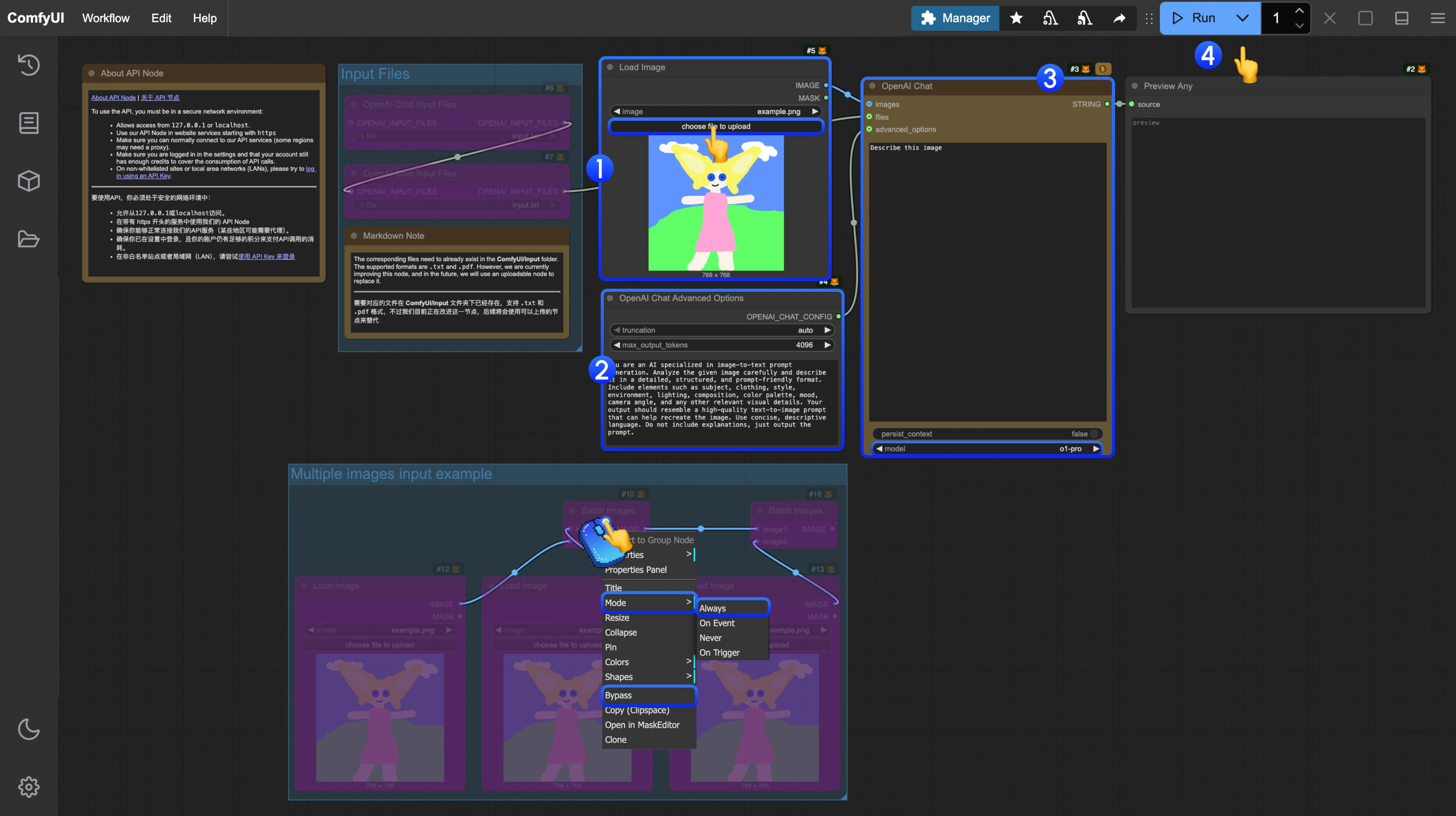
In the corresponding template, we have built a role setting for analyzing prompt generation.
- In the
Load Imagenode, load the image you need AI to interpret - (Optional) If needed, you can modify the settings in
OpenAI Chat Advanced Optionsto have AI execute specific tasks - In the
OpenAI Chatnode, you can modifyPromptto set the conversation prompt, or modifymodelto select different models - Click the
Runbutton, or use the shortcutCtrl(cmd) + Enterto execute the conversation. - After waiting for the API to return results, you can view the corresponding AI returned content in the
Preview Anynode.
3. Additional Notes
- Currently, the file input node
OpenAI Chat Input Filesrequires files to be uploaded to theComfyUI/input/directory first. This node is being improved, and we will modify the template after updates - The workflow provides an example using
Batch Imagesfor input. If you have multiple images that need AI interpretation, you can refer to the step diagram and use right-click to set the corresponding node mode toAlwaysto enable it